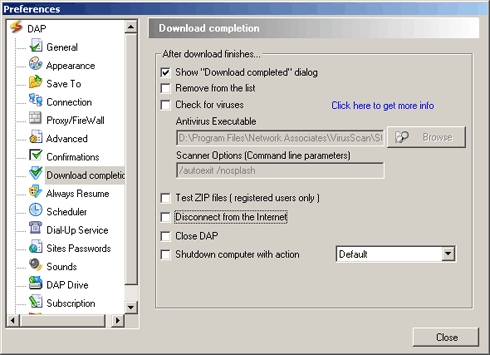
You may configure DAP to notify you of the completion
of a download, to update the list of files in the queue,
and to disconnect after completing the downloads.
- In DAP's main window, select the Options menu and choose Preferences. The preferences window appears.
- Under the Configuration tree, choose the Download
Completion option to display the Download
Completion window.
- To display a Download complete message: check Show
Download completed.
- To remove a downloaded item from your list: check
Remove item from the list.
- To check your files for viruses: check
Check for viruses. (you have to have an antivirus
program installed).
- DAP (version 5.3 and later) enables you to
test downloaded zip files after downloading them. If
you wish to do so, check this option in the 'After
download completion' section.
- Check this option To disconnect automatically from
the internet after downloads has completed.
- Check this option to close DAP after download has
completed.
- To shutdown your computer after download has finished:
check Shutdown computer You can choose whether
you want to shut down, restart or log off.
|